
World View App: Android Download & Setup Guide
Home »
Downloading the World View X player app on Android takes less than five minutes. This guide walks you through every step, from downloading the APK to signing in and watching your first show.
You don’t need any technical skill for this. Just follow the steps in order, and you’ll be streaming in no time.
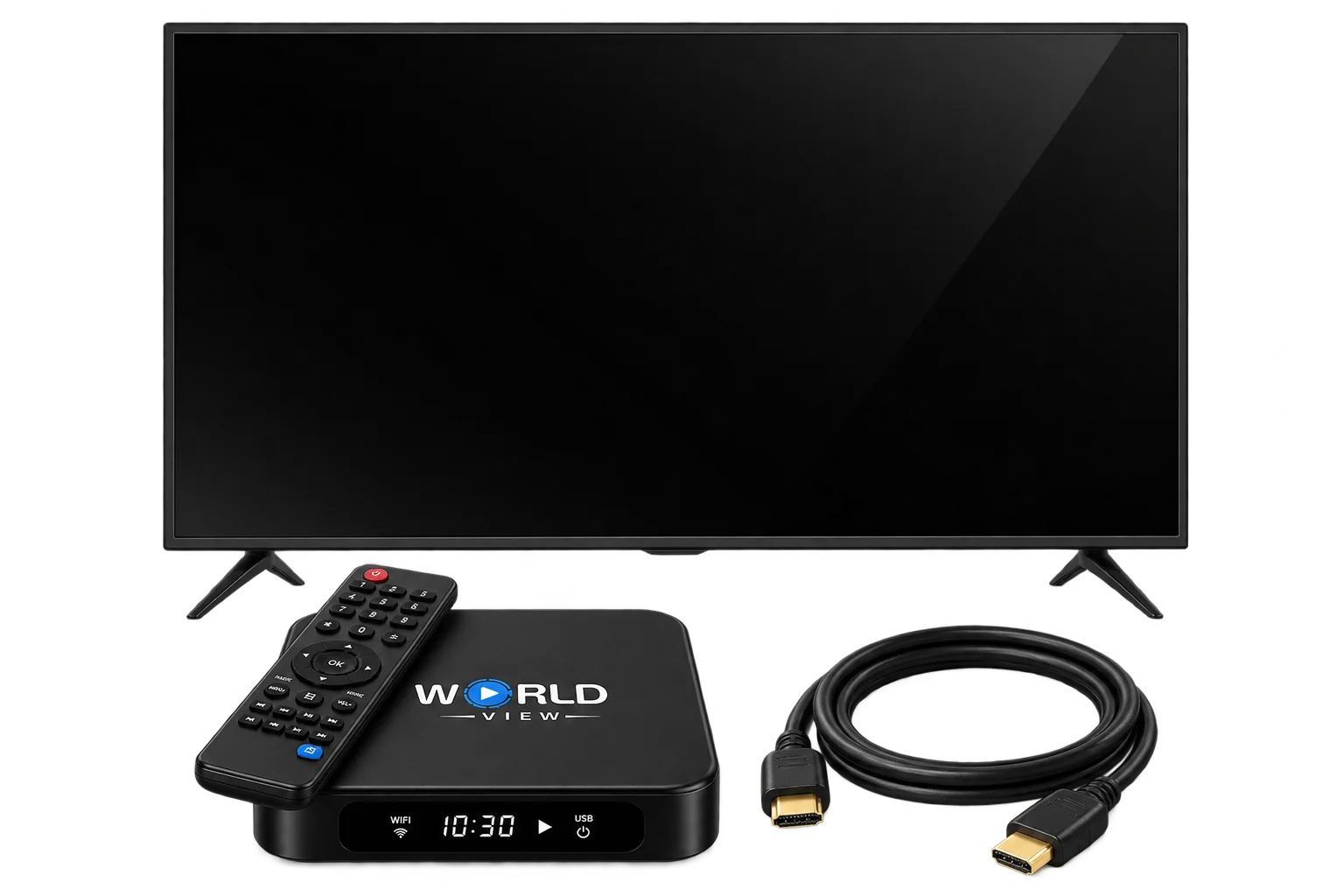
What You'll Need Before Installing the World View X player app
Before you begin, gather these three things:
- An Android phone or tablet
- Your Service ID (you received this when you bought your World View HD Box)
- A stable Wi-Fi or mobile data connection
Once you have these ready, you can start the download.
01
Get Your Login Details from the Box
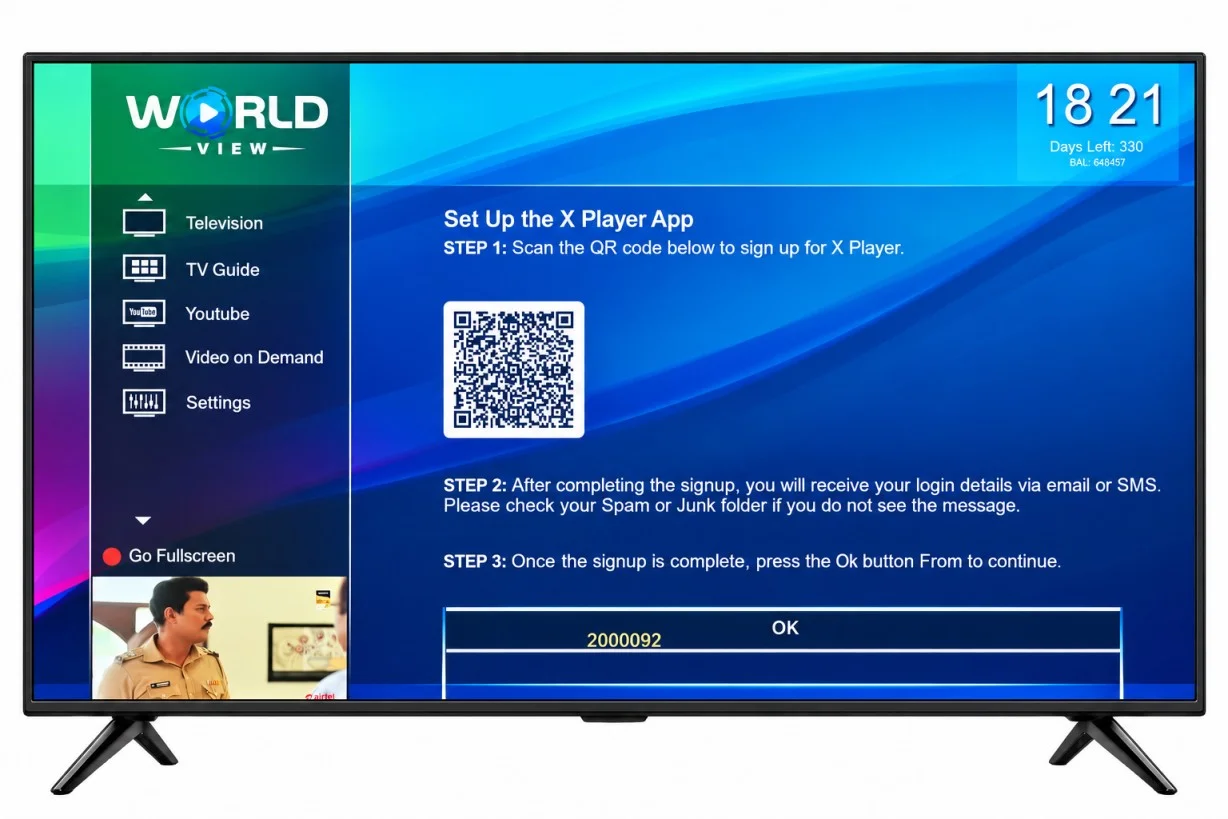
On your World View HD box, go to Settings and select X Player. A QR code will appear on your TV screen.
Scan it with your phone and complete the short sign-up form. Your username and password will be sent to you by SMS or email. If you don’t see the message, check your Spam or Junk folder.
Once the sign-up is done, press OK on your remote to continue. Keep your login details handy, as you’ll need them in Step 9.
02
Tap the "Download APK" Button
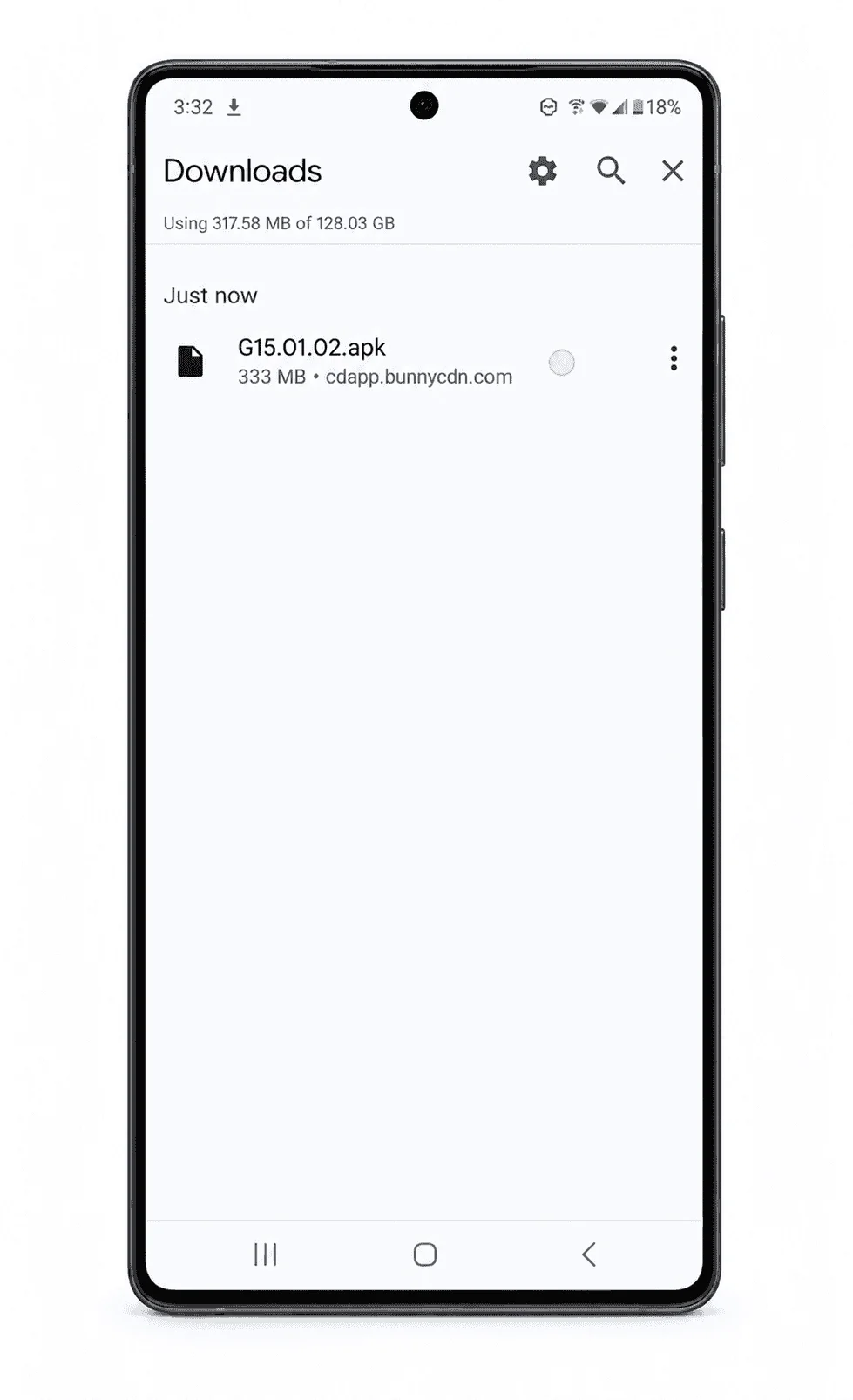
Download the Mobile app by clicking the Download APK button. This downloads the mobile app file, known as an APK, directly to your device.
Because this file comes straight from World View HD, you don’t need to search for it anywhere else. Using the official button keeps your device safe and your app up to date.
03
Allow the Download to Continue
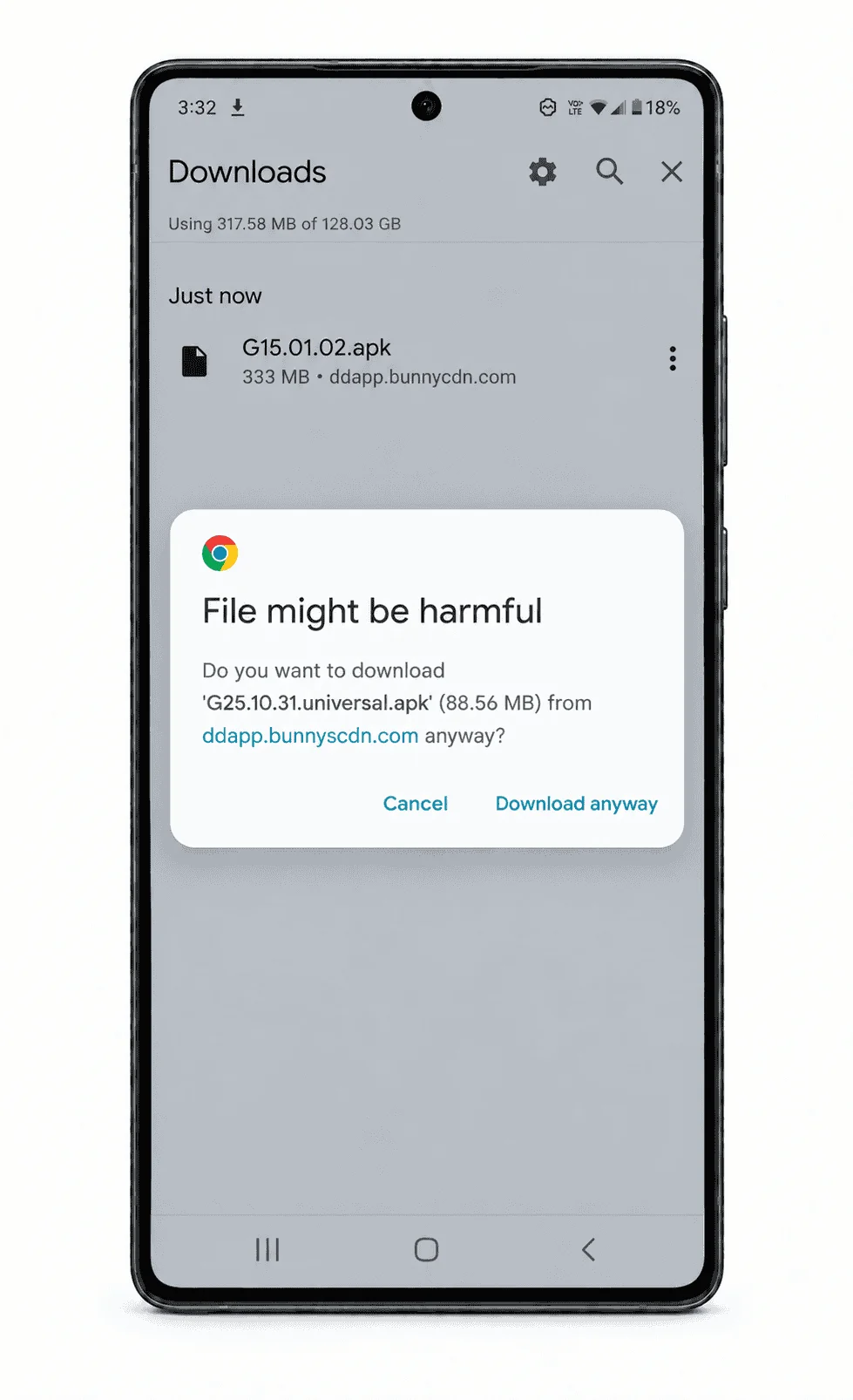
Right after you tap the Download APK button, Android may show a warning that says “File might be harmful.” This message can look alarming, but don’t worry. Android shows this warning for apps that come from outside the Google Play Store, not because something is wrong with the file.
If this pop-up appears, simply tap Download anyway to continue. If it doesn’t appear, skip this step and move straight to Step 4.
04
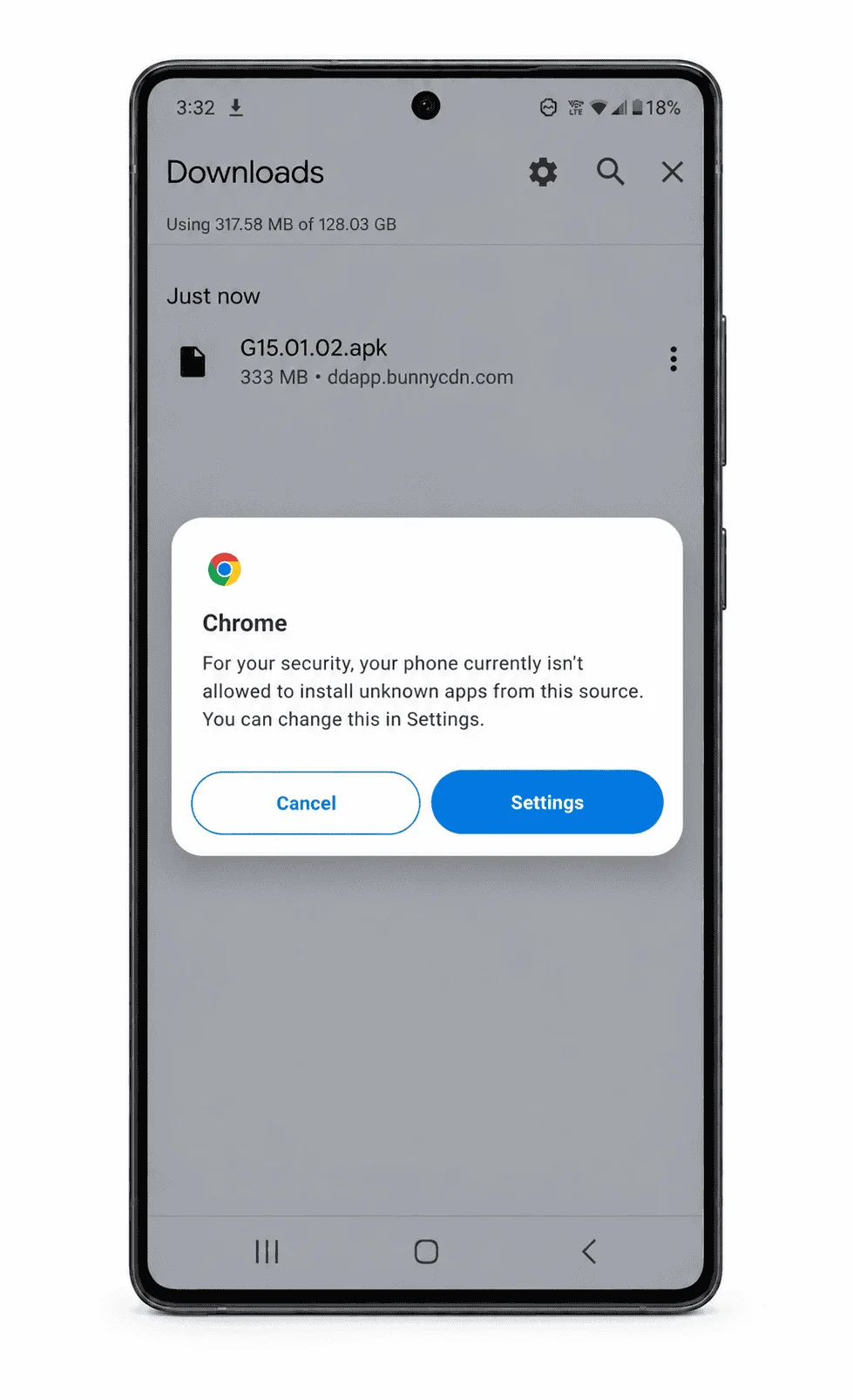
Open the APK File
Once the download finishes, open it from your notification bar or find it in your Downloads folder and tap it. This starts the installation process.
04
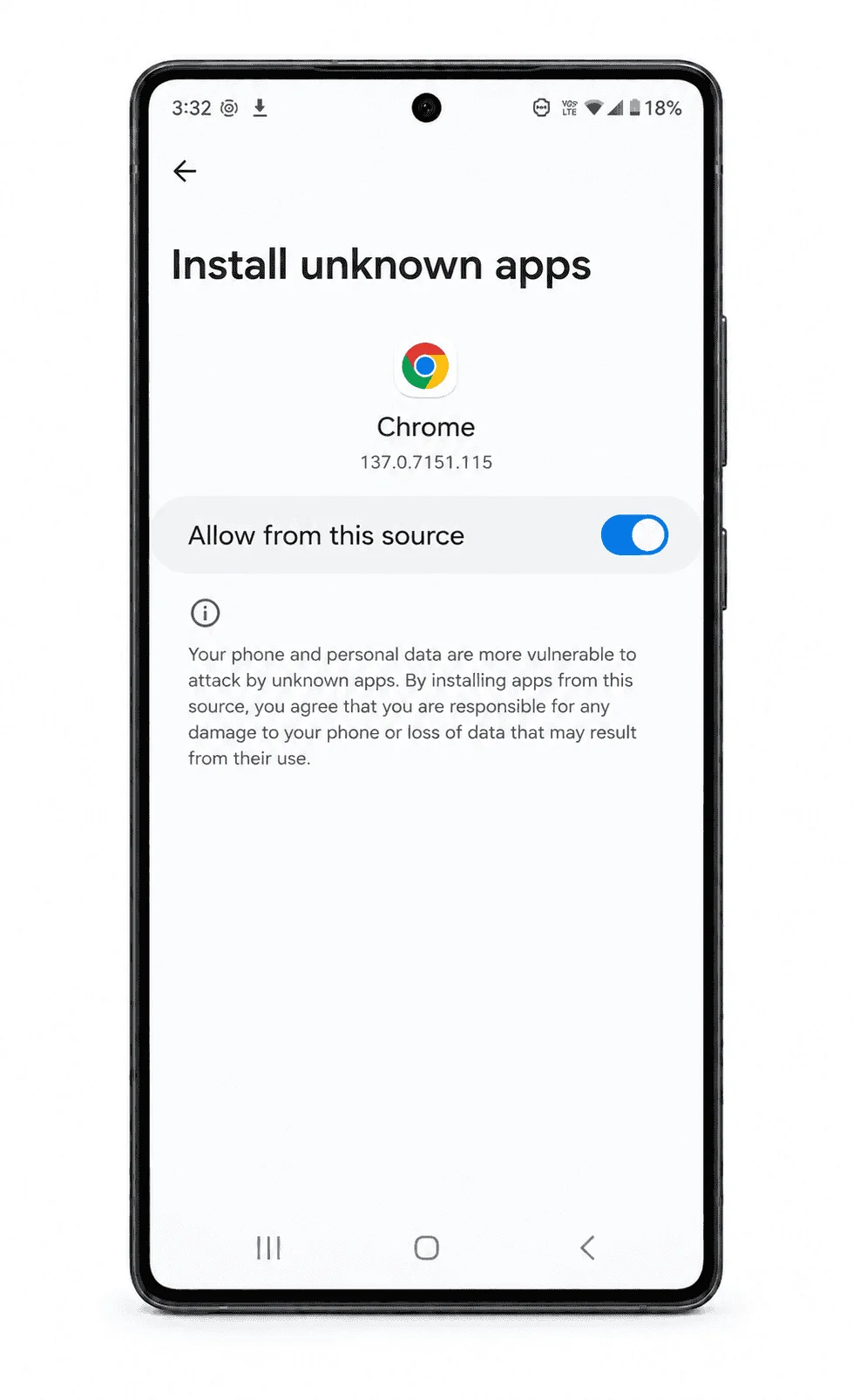
Turn On "Install Unknown Apps"
If your phone blocks the install, it’s because a setting called Install unknown apps is switched off. This is a normal Android safety feature, and turning it on is a quick, one-time step.
Here’s how:
- Go to your phone’s Settings.
- Find Install unknown apps (sometimes listed under Security or Apps).
- Select your browser or file manager.
- Turn on Allow from this source.
Now, go back to your Downloads folder and tap the APK file again to continue the installation.
06
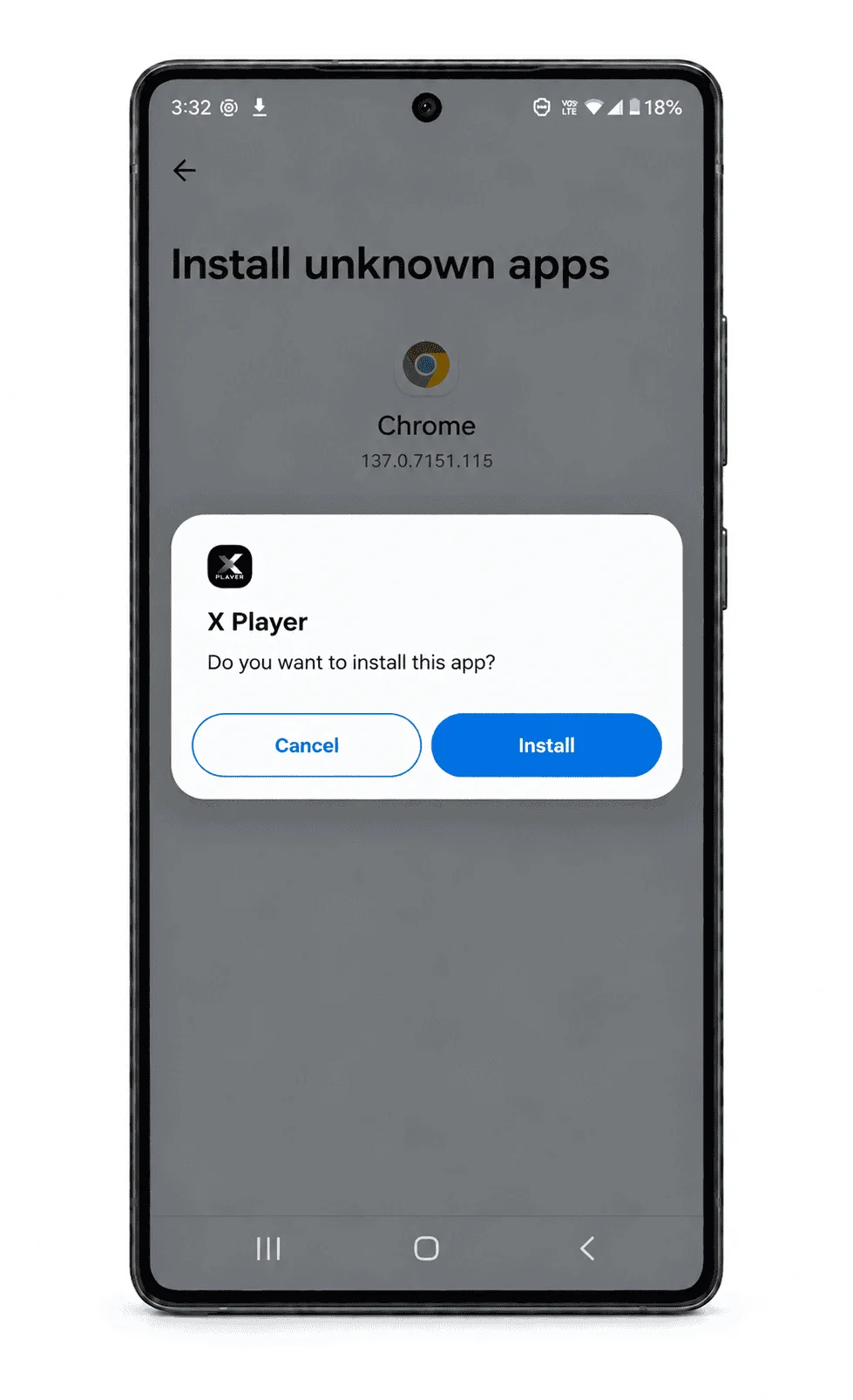
Install the App
Tap Install, and wait a few seconds while your phone finishes the setup. When it’s done, you’ll see an Open button on the screen.
07
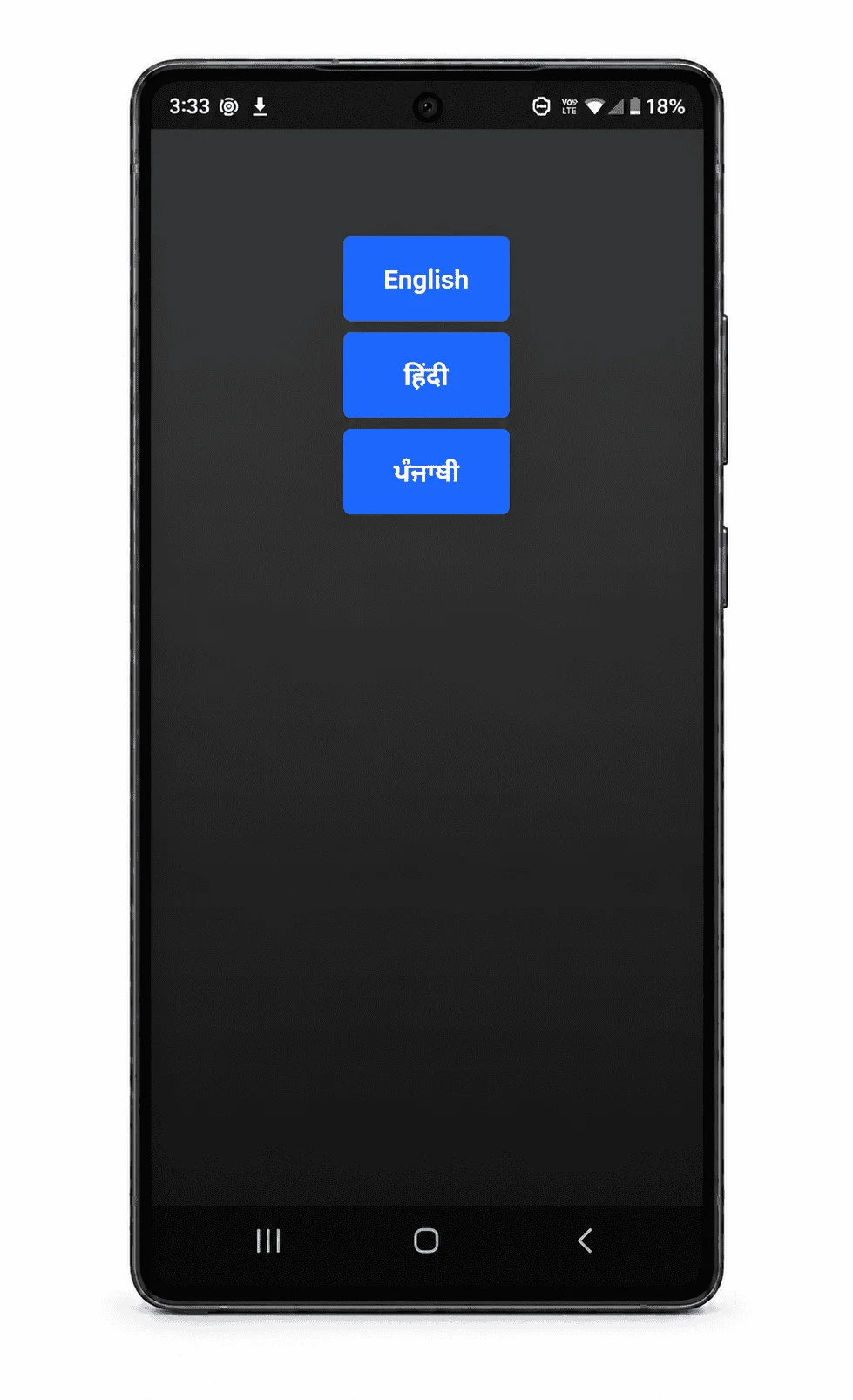
Choose Your Language
Open the World View X player app and pick your preferred language. World View HD supports English, हिन्दी (Hindi), and ਪੰਜਾਬੀ (Punjabi), along with other South Asian languages like Tamil, Telugu, Urdu, and Bengali.
Pick the one that feels most comfortable for you and your family.
08
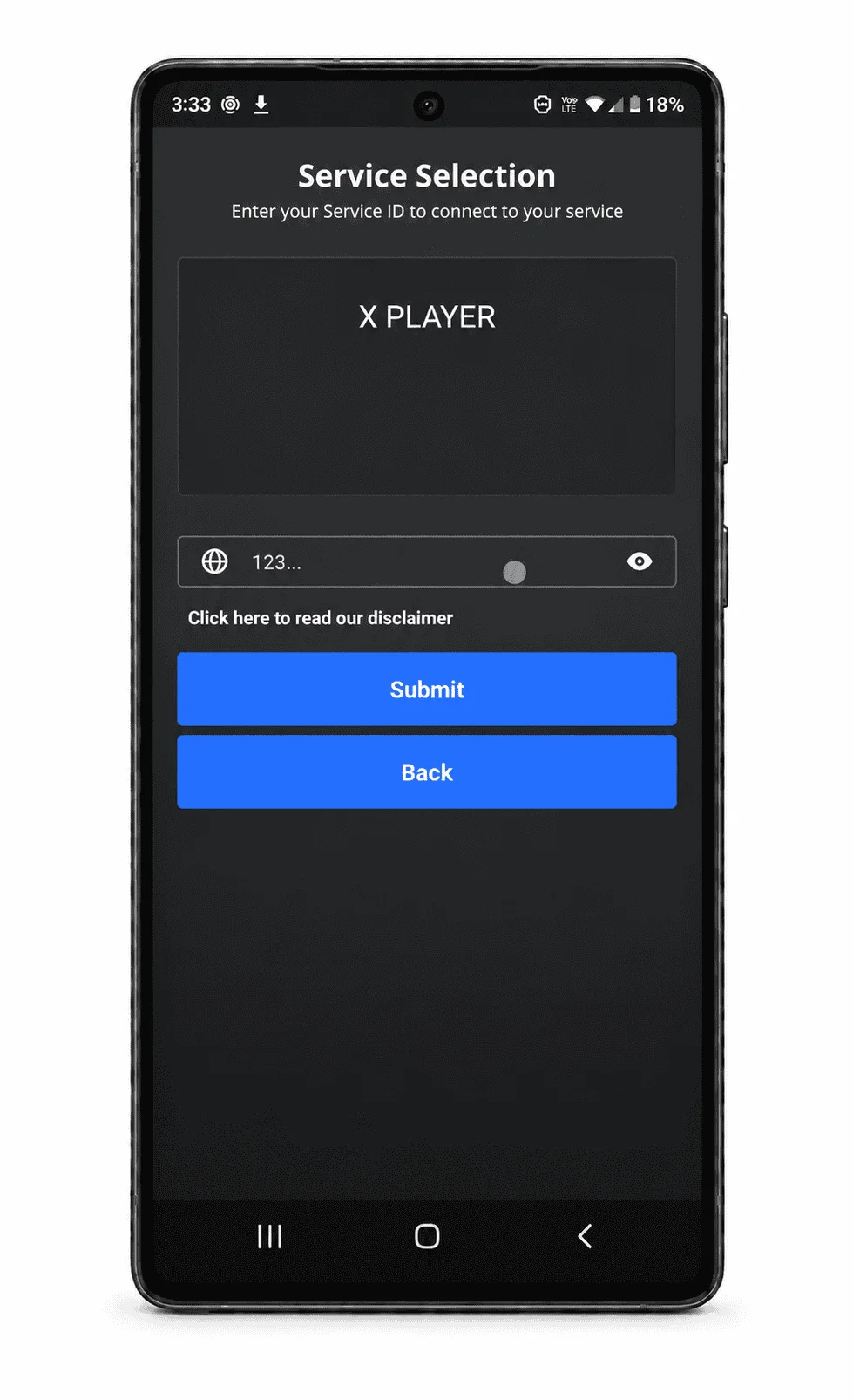
Enter Your Service ID
Next, enter the Service ID you received when you purchased your box. You’ll find this in your purchase confirmation email or on the box itself.
Type it in, then tap Submit. Your account connects automatically, so you won’t need to enter any other setup details here.
09
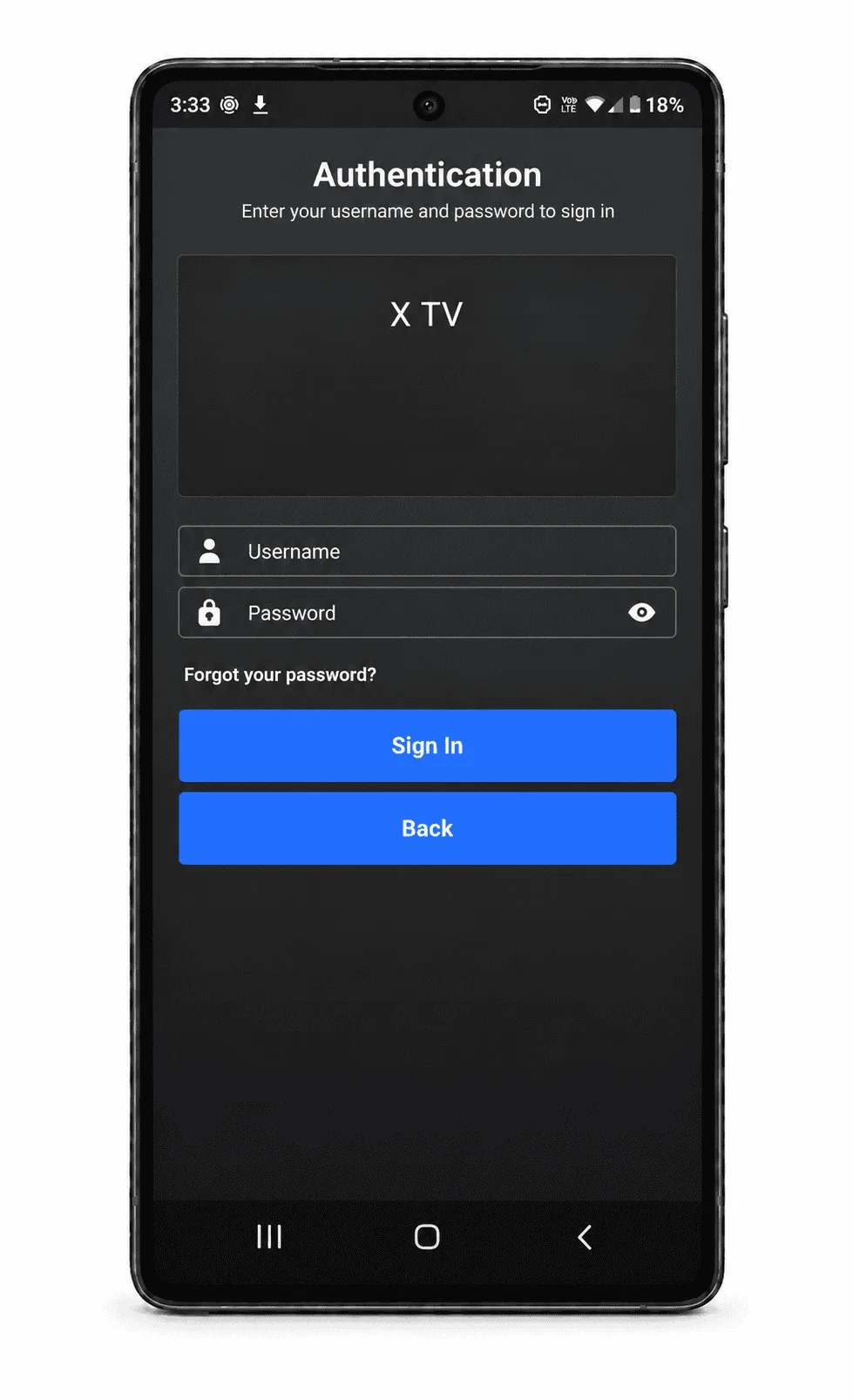
Sign In to Your Account
Enter the username and password you received by SMS or email in Step 1. If you didn’t get them or can’t find them, repeat Step 1 (Settings > X Player), scan the QR code on your TV screen, and complete the sign-up form again. Check your Spam or Junk folder if the message doesn’t arrive.
Then enter your username and password to sign in.
10
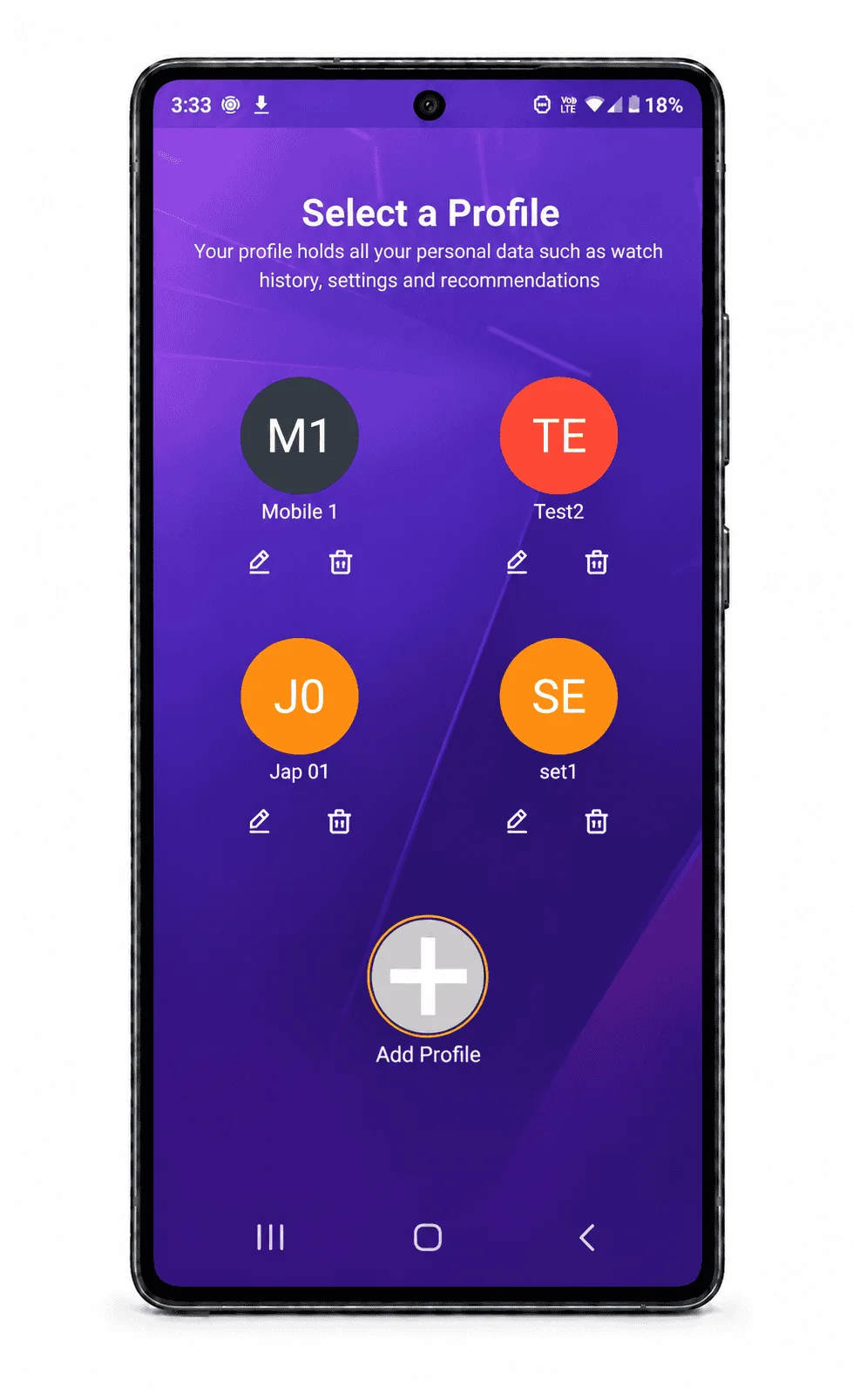
Start Streaming
You’re all set. Choose an existing profile, or create a new one, and your personalised home screen loads right away.
From here, you can browse live channels, catch up on shows, or explore movies in your language, all from your Android device.
Your Settings Are Saved: What to Expect Next
Once you sign in, the app remembers your language, your profile, and your preferences. You won’t need to repeat any of these steps again unless you install the app on a new device.
Troubleshooting Common Issues
- The APK won’t install. Check that you’ve turned on Install unknown apps for your browser, as shown in Step 4.
- My Service ID isn’t working. Double-check for typos, since Service IDs are case-sensitive. If it still doesn’t work, confirm the ID matches the one in your purchase email.
- I haven’t received my sign-in details. Check your SMS, email, and spam folder. If nothing is there, repeat Step 1 (Settings > X Player) to scan the QR code and sign up again. Still nothing? Our support team can resend them.
- The app opens but won’t load channels. This is usually a connection issue. Switch between Wi-Fi and mobile data to see which works better for you.
FREQUENTLY ASKED
Questions Families Ask

Why does Android say "file might be harmful" when I download the app?
Android shows this message for any app installed outside the Play Store. It’s a standard warning, not a sign that the file is unsafe.
Where do I find my Service ID?
Your Service ID arrives in your confirmation email when you purchase your World View HD Box. You can also find it printed on the box.
Can I use the app without the box?
The app is designed to work with your World View HD Box and your Service ID. If you own a compatible device instead, you can set it up using an Activation Code.
What languages does the app support?
The app supports English, Hindi, Punjabi, Tamil, Telugu, Urdu, Bengali, and several other South Asian languages.