
IPTV Box Setup Guide: Connect, Pair, and Activate
Your World View HD media box setup takes only 10 minutes. It includes 5 simple steps: connect the HDMI cable, pair the remote, complete the on-screen setup menu, sign in, and activate your account.
What You Need Before You Start
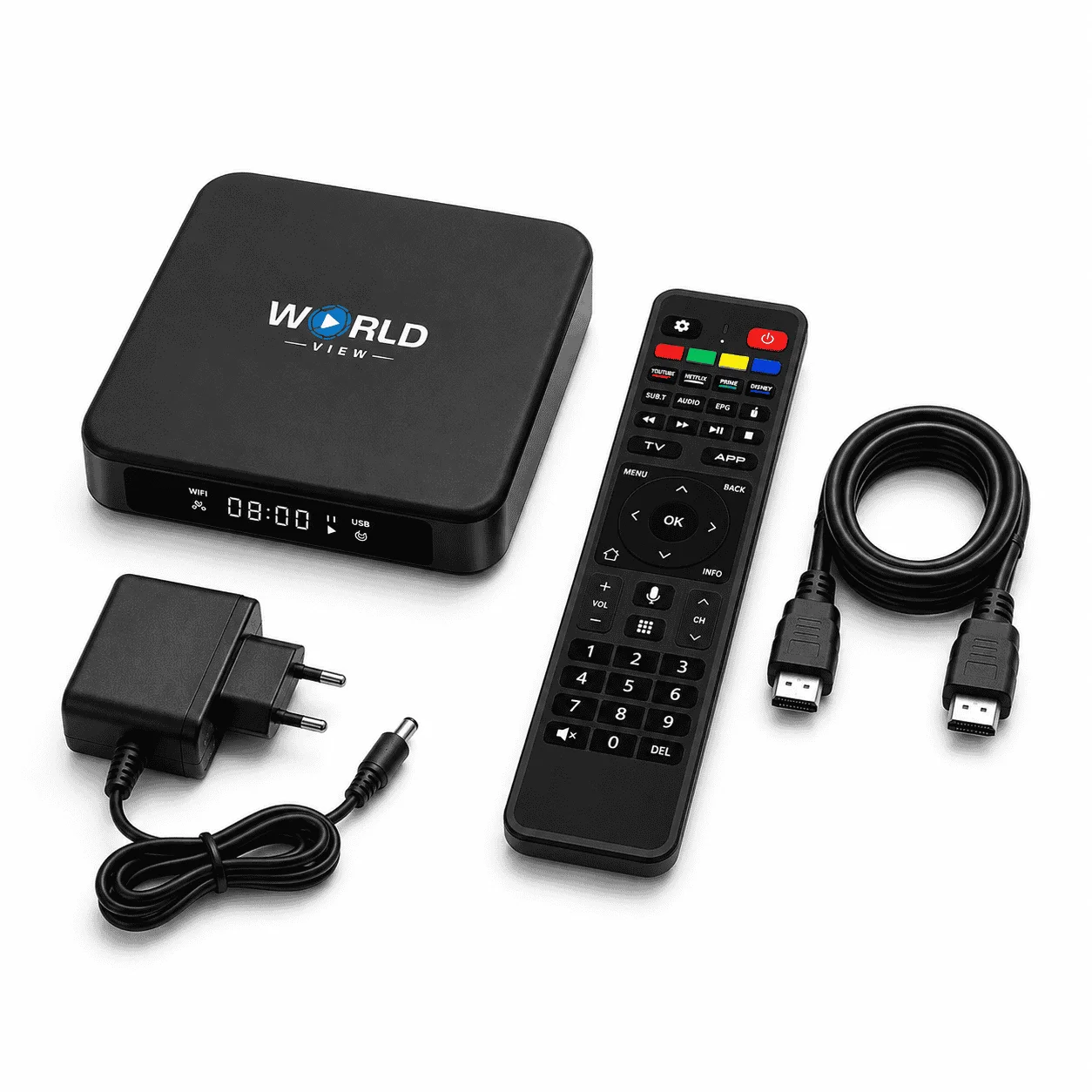
Before moving to the World View HD Media Box setup steps, first check that you have:
- the Media Box
- power adapter
- HDMI cable
- remote
World View HD ships all these items in a single package. Once verified, insert the batteries into the remote. Keep the Media Box close to your TV for a well-organized setup.
01
Connect Your Media Box to the TV
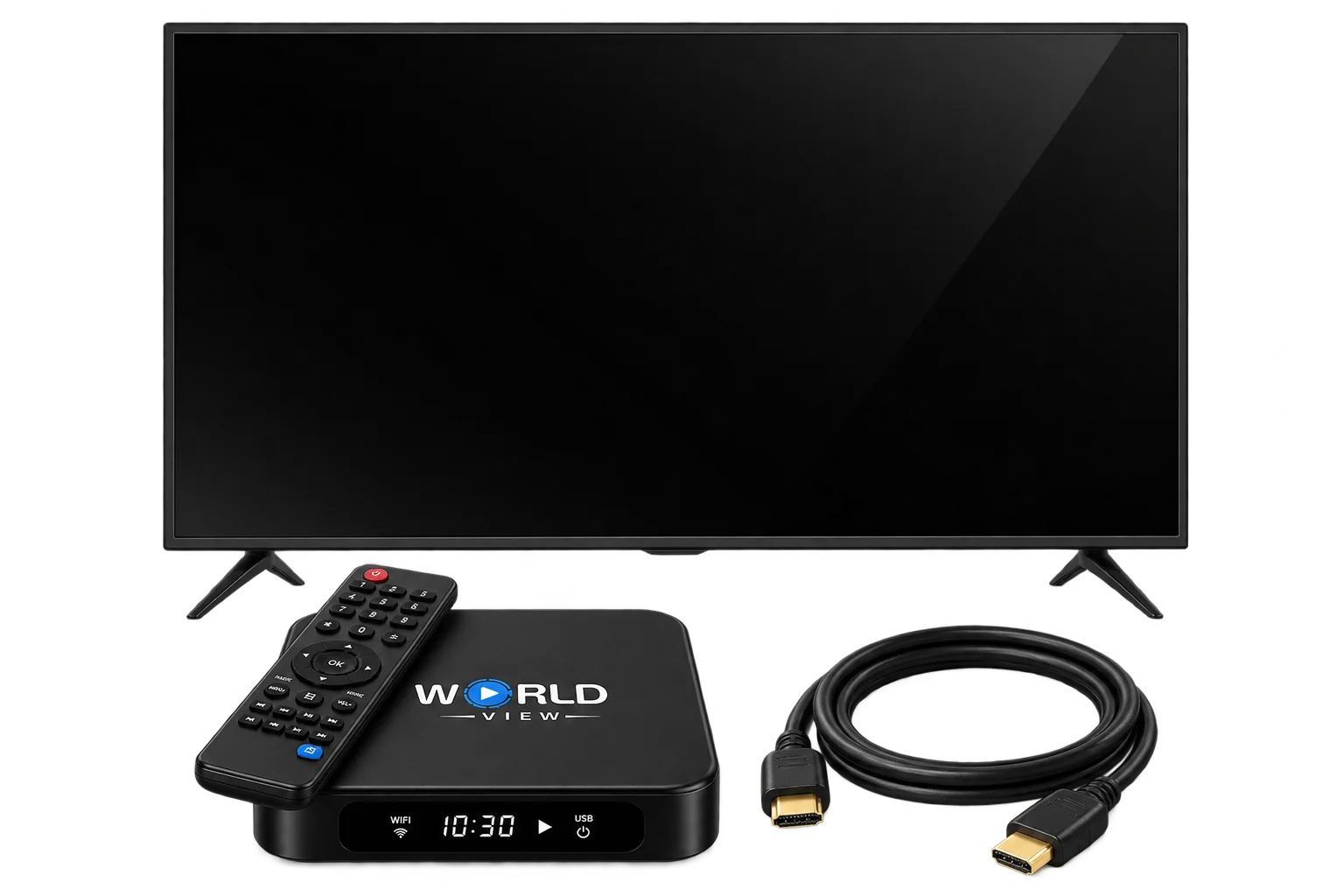
Plug the power adapter into the box, then into a wall outlet. Connect the HDMI cable the one included in your box- between the Media Box and your television. Switch your TV to the matching HDMI input, and the device screen shows up within seconds.
02
Pair the Remote Control via Bluetooth
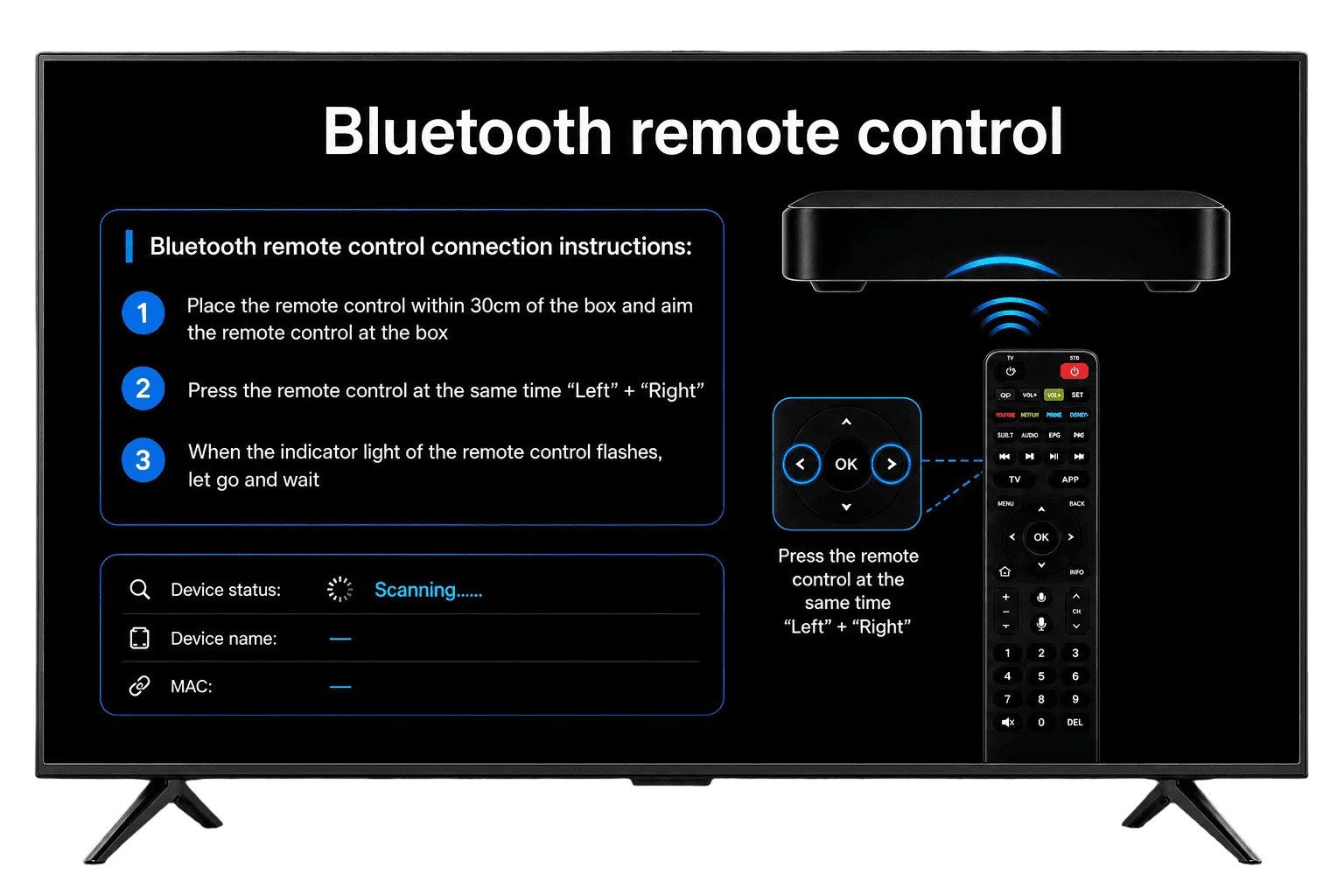
The remote won’t work until it’s paired. Turn on the device, and it enters Bluetooth pairing mode automatically. Keep the remote within 30cm of the box while you do this.
Press the left and right arrow buttons together and hold for four seconds. Watch for the red indicator light on the remote; it flashes while pairing is in progress. Once your screen shows “Connected,” the remote is synced and ready.
Switching the Remote Between Different Boxes
A remote only remembers one box at a time. Say your remote is currently paired with Box A and you want to move it to Box B. Remove the pairing from Box A’s settings first, then pair it with Box B. From that point, the remote ignores Box A entirely until you go back and repeat the process in reverse.
03
Understand the Voice Button
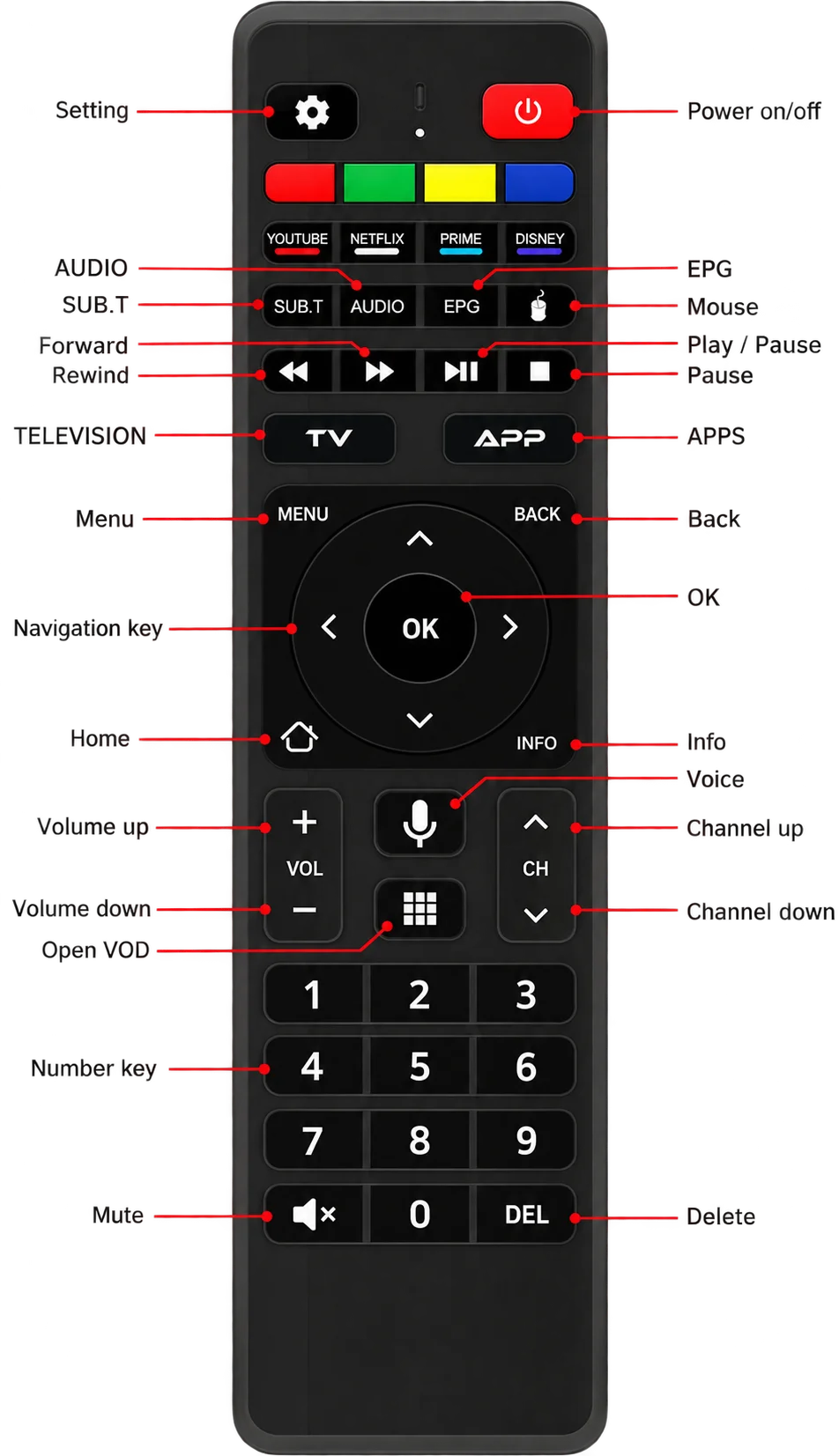
What the voice button does depends on whether the remote is already paired, so it’s worth knowing both states.
IR (Infrared) Mode: An unpaired remote runs in IR mode. Press the voice button here, and it opens the Bluetooth pairing screen, ready for you to connect the remote to your box.
Bluetooth Mode: Once paired, that same button switches jobs. It triggers Voice Search instead. Press it and speak a channel name, an app, or whatever you’re searching for.
04
Complete the IPTV Box Setup Menu
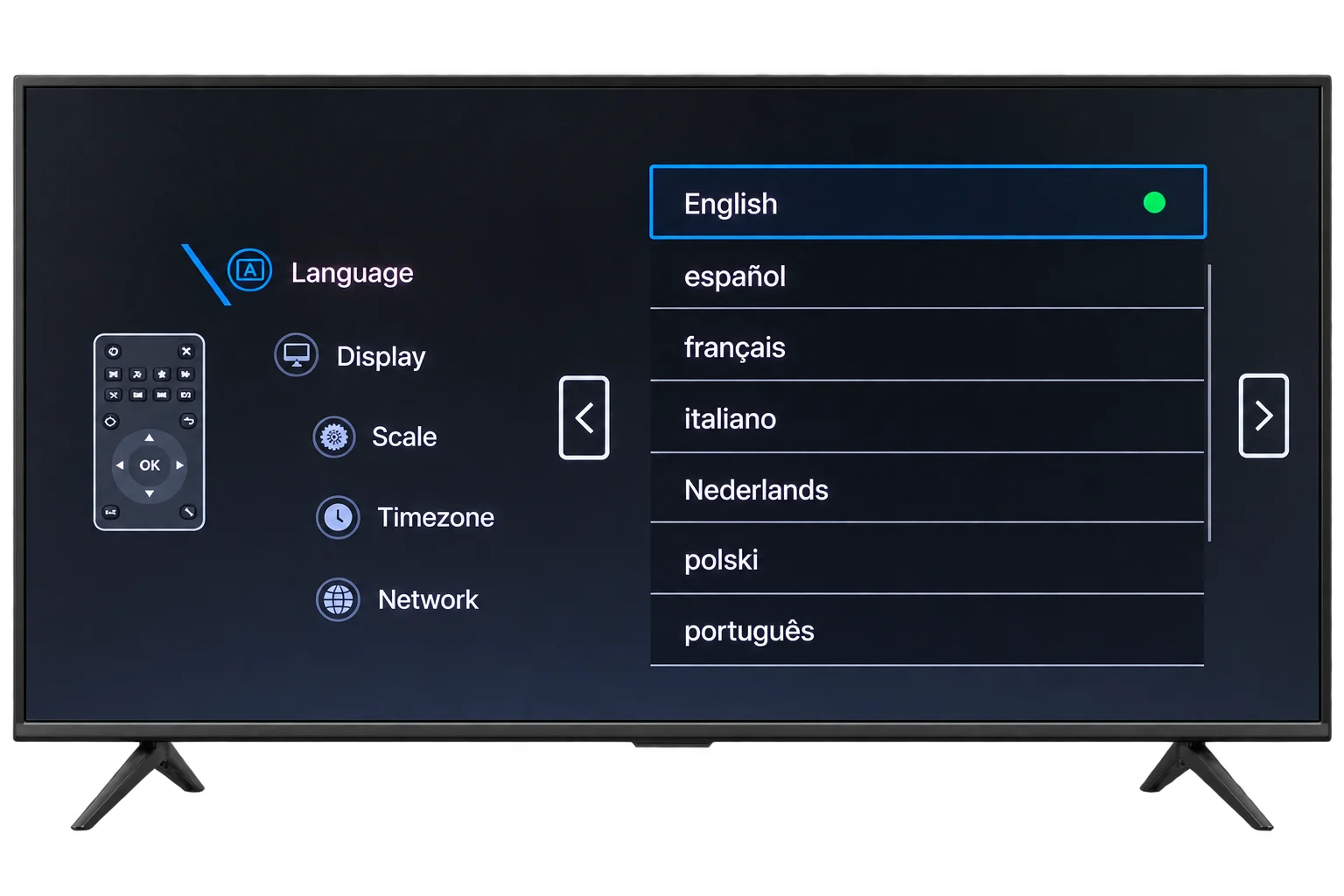
Once the remote connects, you’ll land on a setup menu with five sections. None of them take more than a few seconds.
- Language: Pick your preferred display language.
- Display Resolution: Match it to your TV for the sharpest picture.
- Screen Scale: Defaults to 100%. Adjust it only if content looks cropped or too small.
- Time Zone: Set this to your actual location; it affects your program guide.
- Network: Choose how the box connects to the internet.
Two options here. Ethernet is faster and more stable: it doesn’t fight for bandwidth the way Wi-Fi sometimes does. Wi-Fi is more convenient if running a cable isn’t realistic in your setup. Both work fine, but wired is the better call when you can manage it.
05
Sign In and Activate Your Account
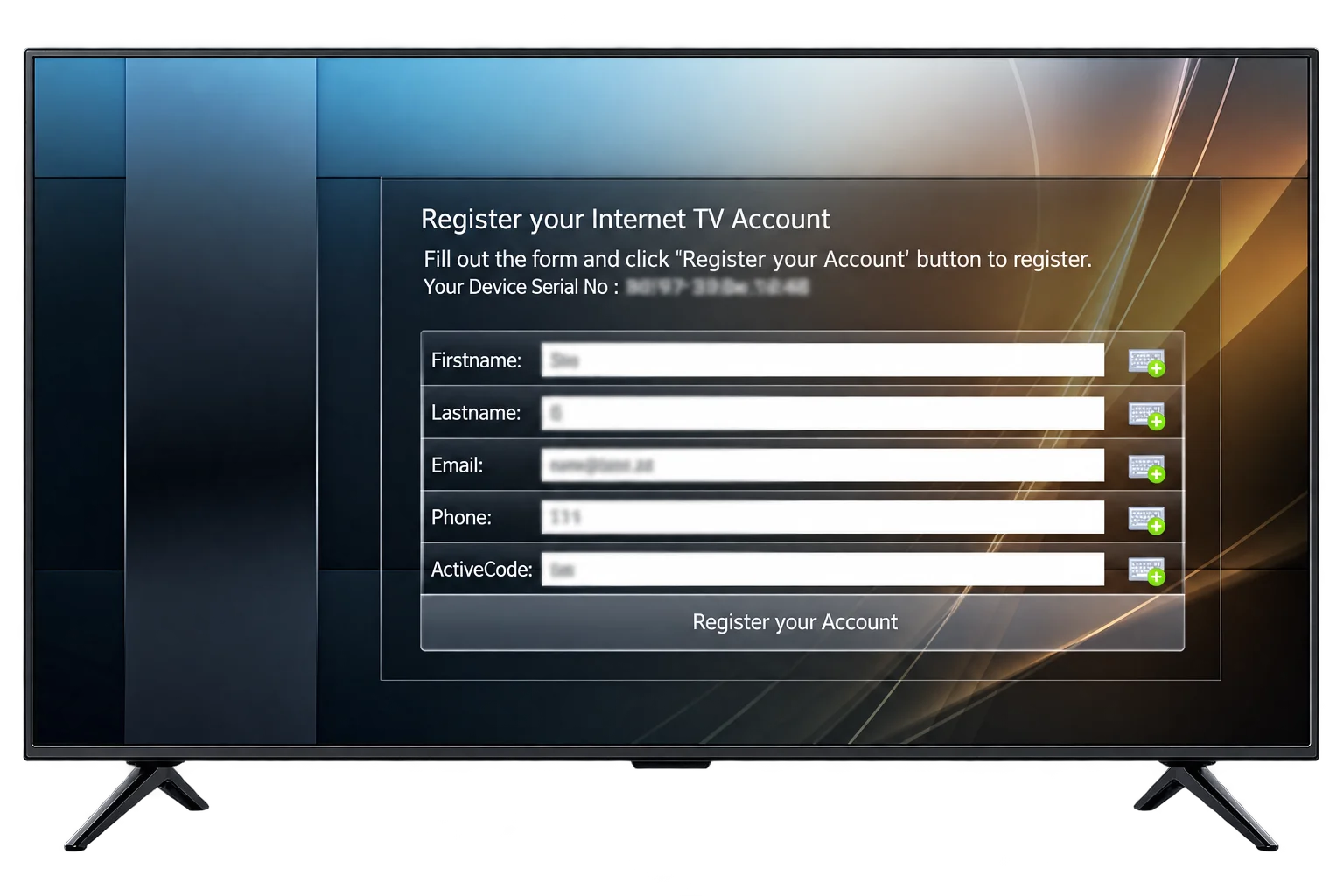
With the setup menu done, tap Sign In to register your World View HD Internet TV account. You’ll need your first name, last name, email address, and phone number.
Last step: enter your Activation Code. This is a one-time code for first-time setup, not the same thing as a Recharge Code, which renews a box that’s already active. Don’t have one yet? You’ll need to buy an Activation Code before you can finish this step.
What Happens After Activation
The home interface loads as soon as activation goes through. From there, you can browse live channels, check the Electronic Program Guide (EPG), and dig into on-demand content. Whatever you set during setup- language, resolution, network- stays exactly as you left it.
Troubleshooting Quick Tips
Remote not pairing? Move closer to the box and repeat the arrow-button step. Channels not loading? Check your Ethernet or Wi-Fi connection first; a weak signal is behind most buffering issues. Still stuck? Reach out to World View HD support.
FREQUENTLY ASKED
Questions Families Ask

Why won't my remote pair with the World View HD Media Box?
Nine times out of ten, it’s the batteries. Swap them out first. Otherwise, stay within 30cm of the box and check that the remote isn’t still paired with a different one; it can only handle one box at a time.
My TV shows "No Signal" after I connect the HDMI cable. What should I do?
Make sure your TV’s actually on the right HDMI input, and check that the cable is fully seated at both ends. Still nothing? Restart both the TV and the Media Box; that usually clears up the handshake between them.
Should I connect my Media Box through Ethernet or Wi-Fi?
Ethernet, if you can. It’s simply more stable, especially when several devices are competing for Wi-Fi at once. That said, Wi-Fi works fine for most everyday viewing.
Why isn't my Activation Code working?
Typos are the usual culprit; codes are case-sensitive, so check carefully. Also, make sure the box is online, since activation needs an internet connection to verify the code.
What's the difference between an Activation Code and a Recharge Code?
Activation Code = one-time, used only when setting up a new box. Recharge Code = renews a box you’ve already activated; no setup required.
How long does the full setup take?
Around ten minutes, start to finish, from HDMI connection through activation.