
How to Download the World View App on iPhone
Home »
You can get the World View X player app on your iPhone in under five minutes. You won’t find it on the App Store because it works as a Progressive Web App (PWA) instead. This guide walks you through every step, from opening the setup page to adding the app icon on your Home Screen.
If you already have your World View HD Box and your Service ID ready, you can start streaming today.
What You Need Before You Start
You only need three things to complete this setup:
- Your World View HD Service ID. You received this when you purchased your World View HD Box.
- An iPhone running Safari. The setup page works best in Safari, Apple’s default browser.
- Your World View HD Box nearby. For first-time sign-in, you’ll scan the QR code in your box’s Settings > X Player.
Once you have these ready, the entire setup takes about five minutes.
Please follow these eight steps in order. Each one builds on the last, so try not to skip ahead
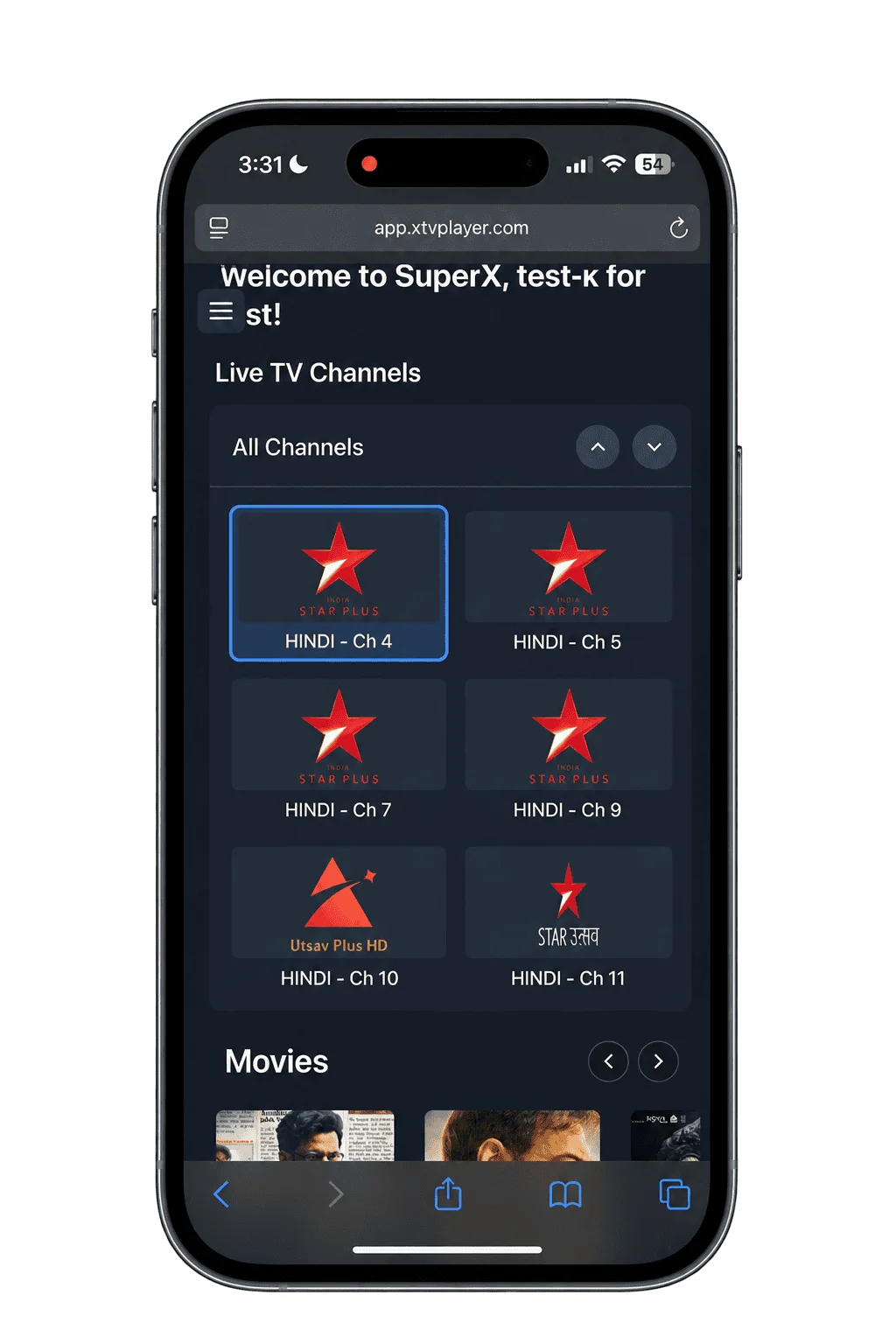
01
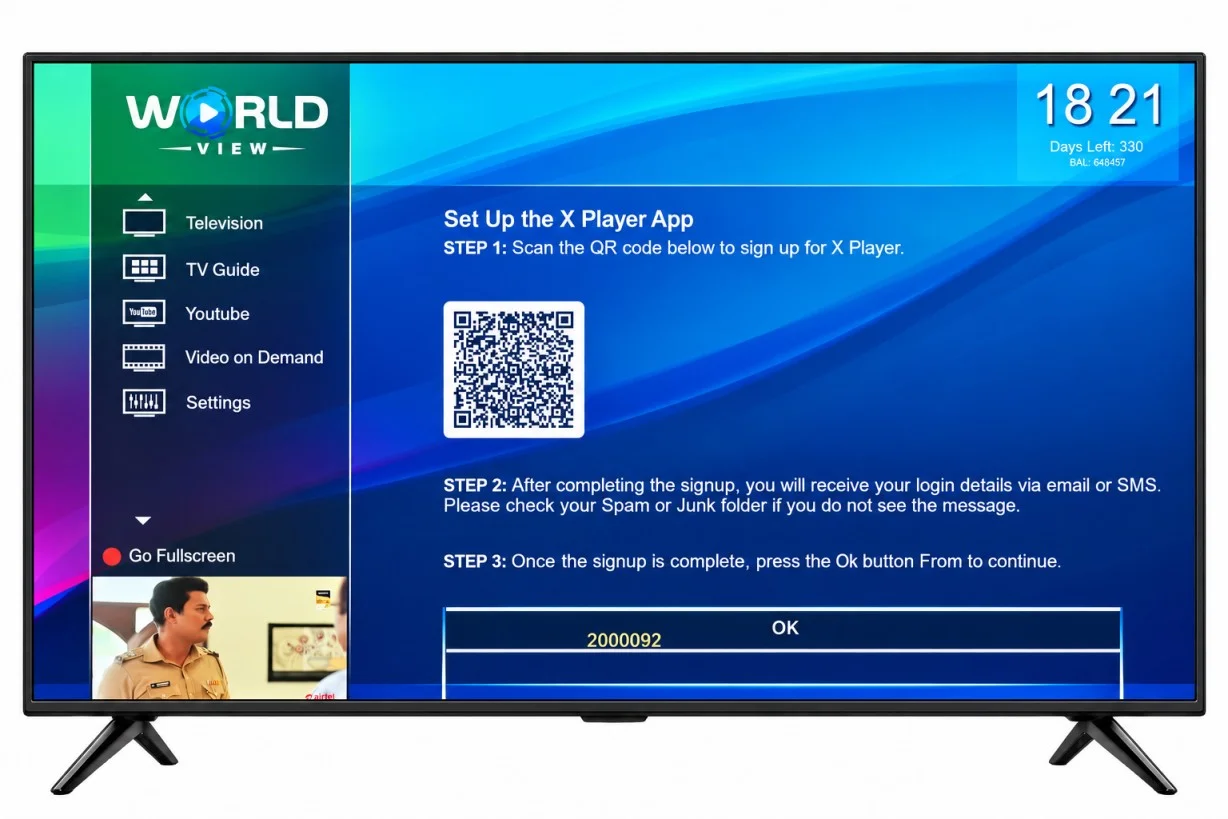
Scan the QR code to get your login details
Start on your World View HD box. Open Settings, choose X Player, and a QR code will show up on your TV screen.
Point your iPhone camera at the code and fill in the quick sign-up form. Your username and password will arrive by SMS or email. If nothing shows up, look in your Spam or Junk folder.
When you’ve finished signing up, press OK on your remote. Save your login details, because you’ll need them in Step 5.
02
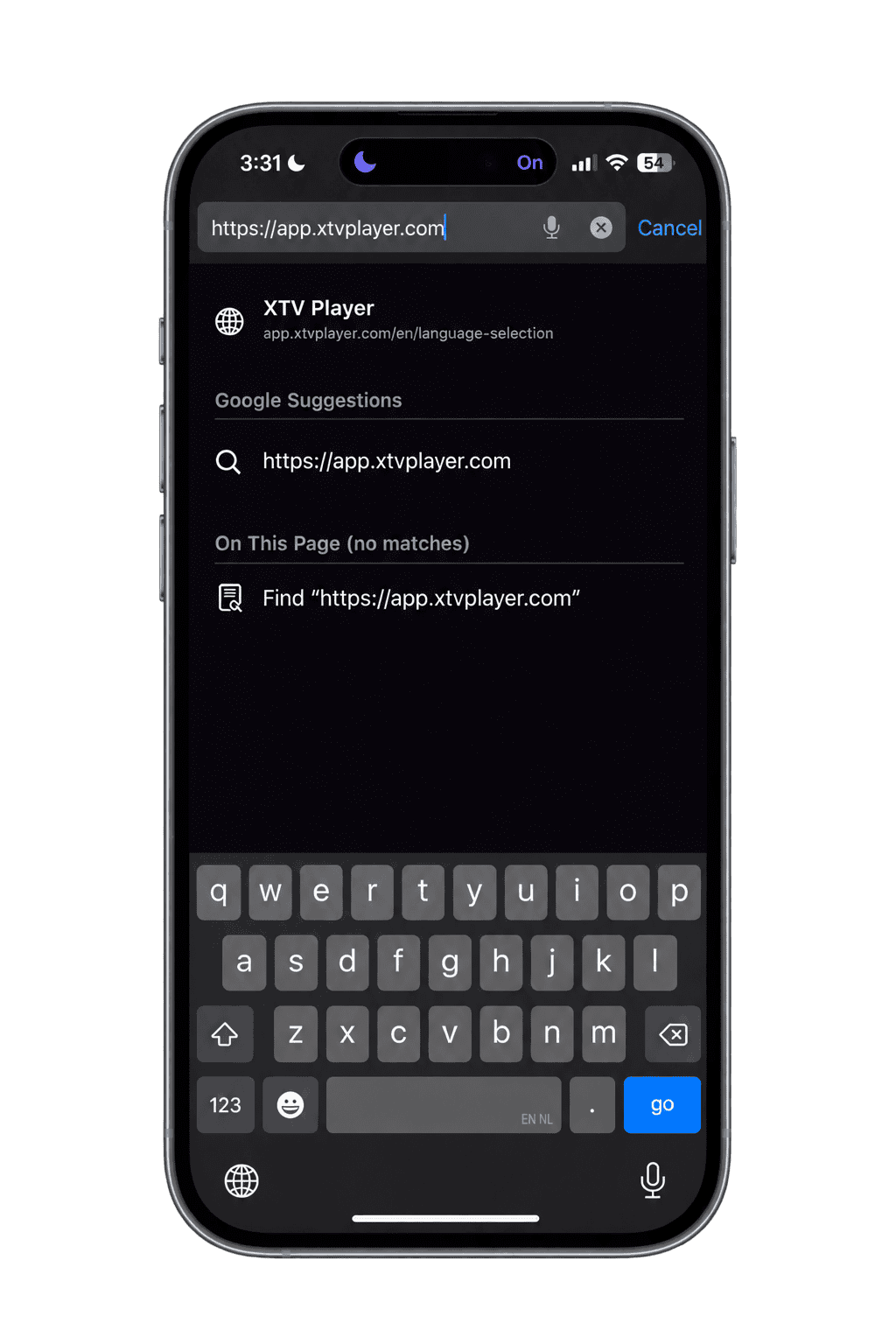
Tap the "App for iPhone" Button Below
Tap the App for iPhone button on this page. It opens the app setup page in a new Safari tab, so you don’t need to type any address by hand. This page won’t appear in an App Store search, since the World View X player app installs directly through your browser instead.
03
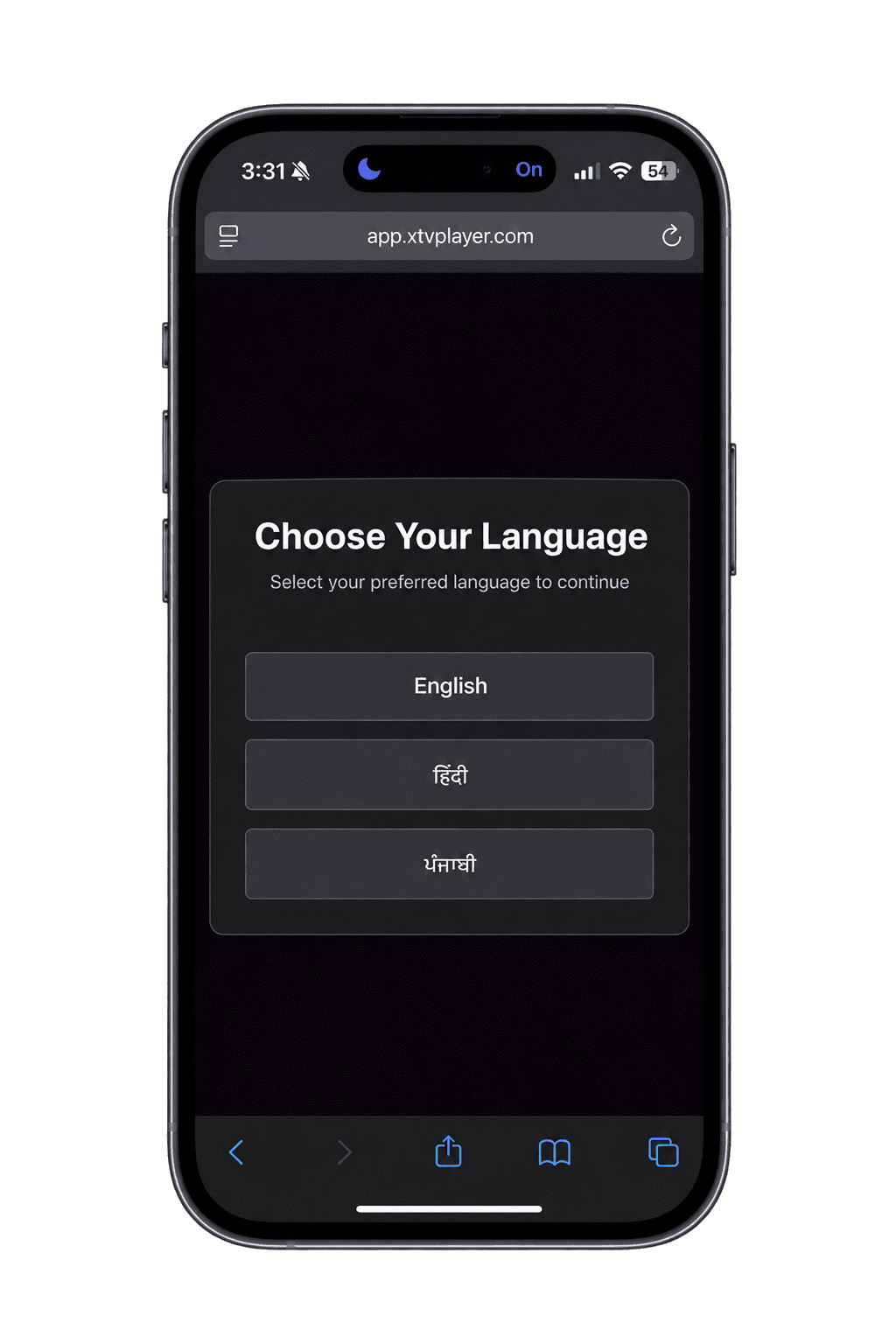
Select Your Preferred Language
Once the page loads, choose your preferred language from the list. World View X player app supports multiple languages, so pick the one that feels most comfortable for you.
04
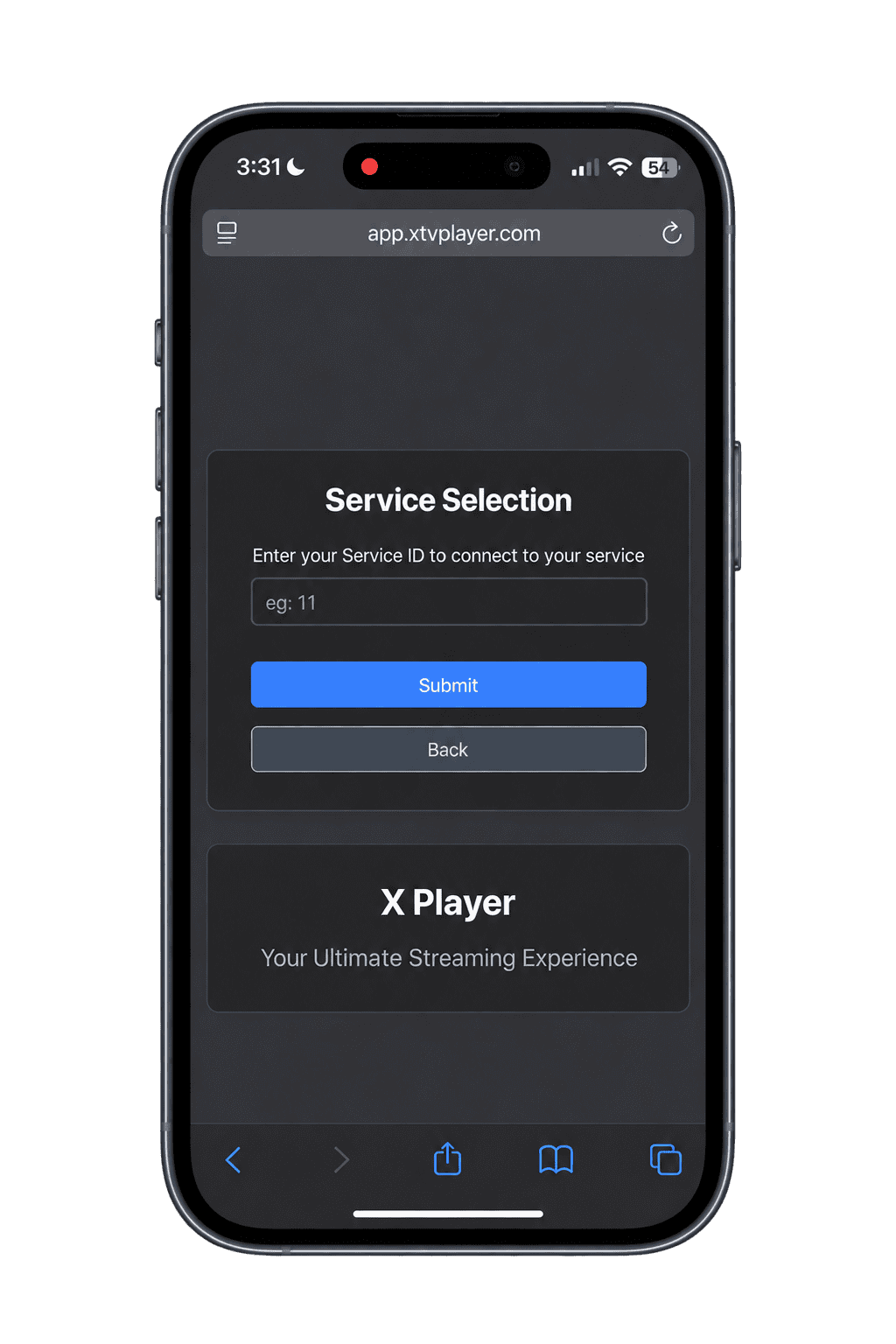
Enter Your World View X player Service ID
Next, enter the Service ID that came with your box purchase. This ID connects your iPhone to your specific World View X player account, so double-check the digits before you tap Submit.
05
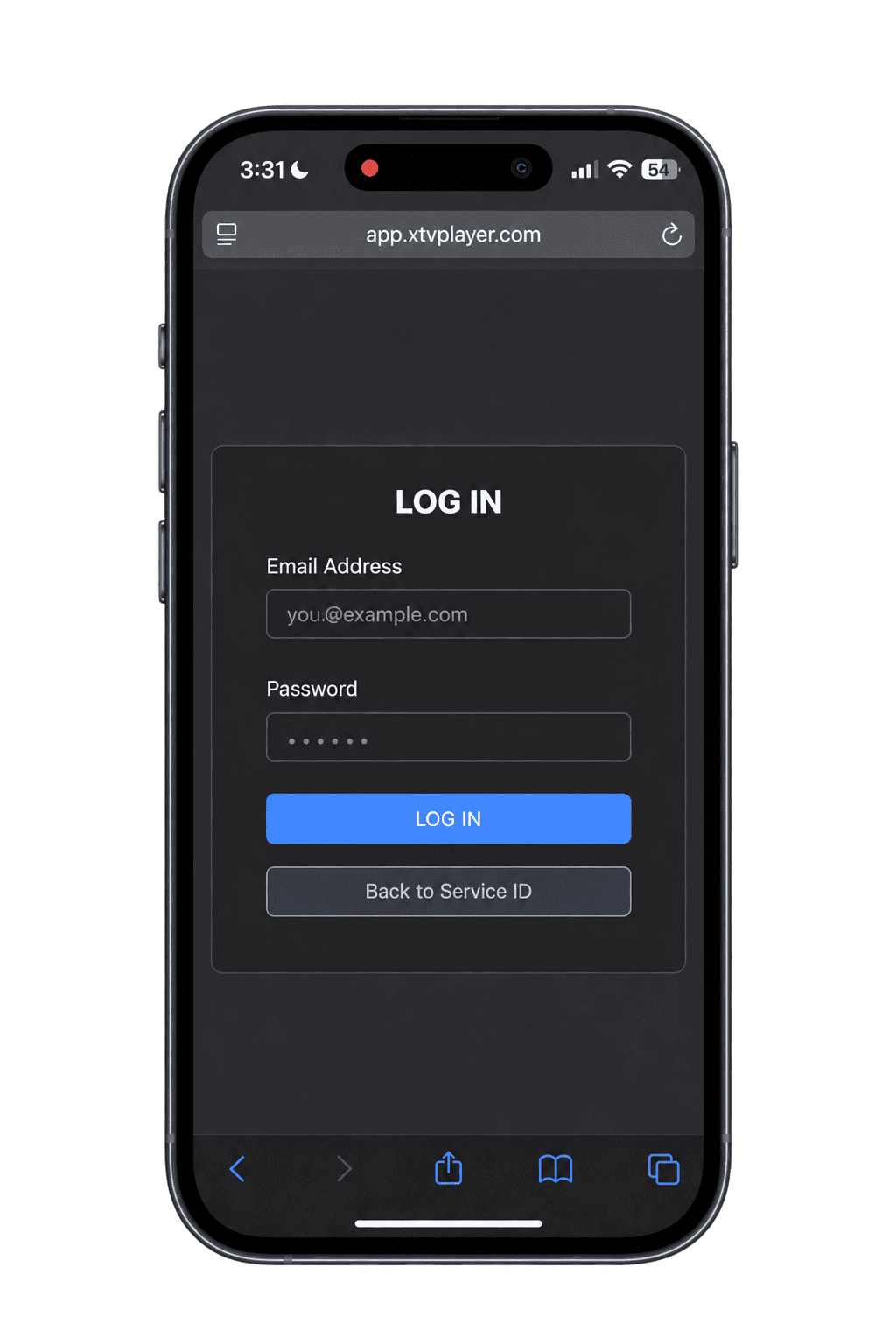
Sign In to Your Account
You’ll now see a login screen asking for your email and password. Enter the login details you received in Step 1 and tap Log In.
Haven’t received them yet? Go back to Step 1 (Settings > X Player on your box), scan the QR code on your TV screen, and complete the sign-up form. You only need to do this once.
06
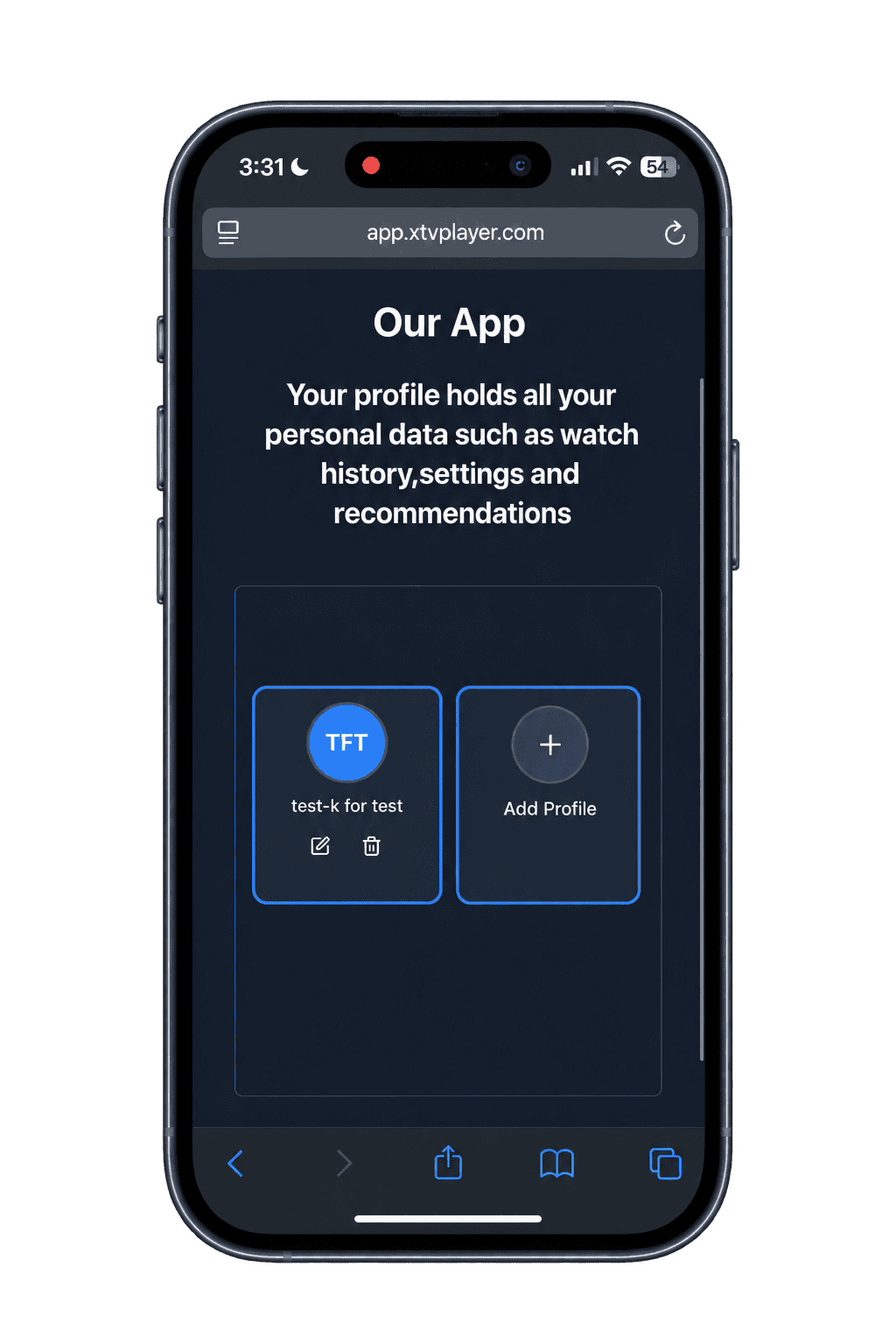
Choose or Create Your Profile
After you sign in, you’ll land on the profile screen. Select an existing profile or create a new one if this is your first visit. Profiles let you personalize your viewing experience, much like the profile system on other streaming platforms.
07
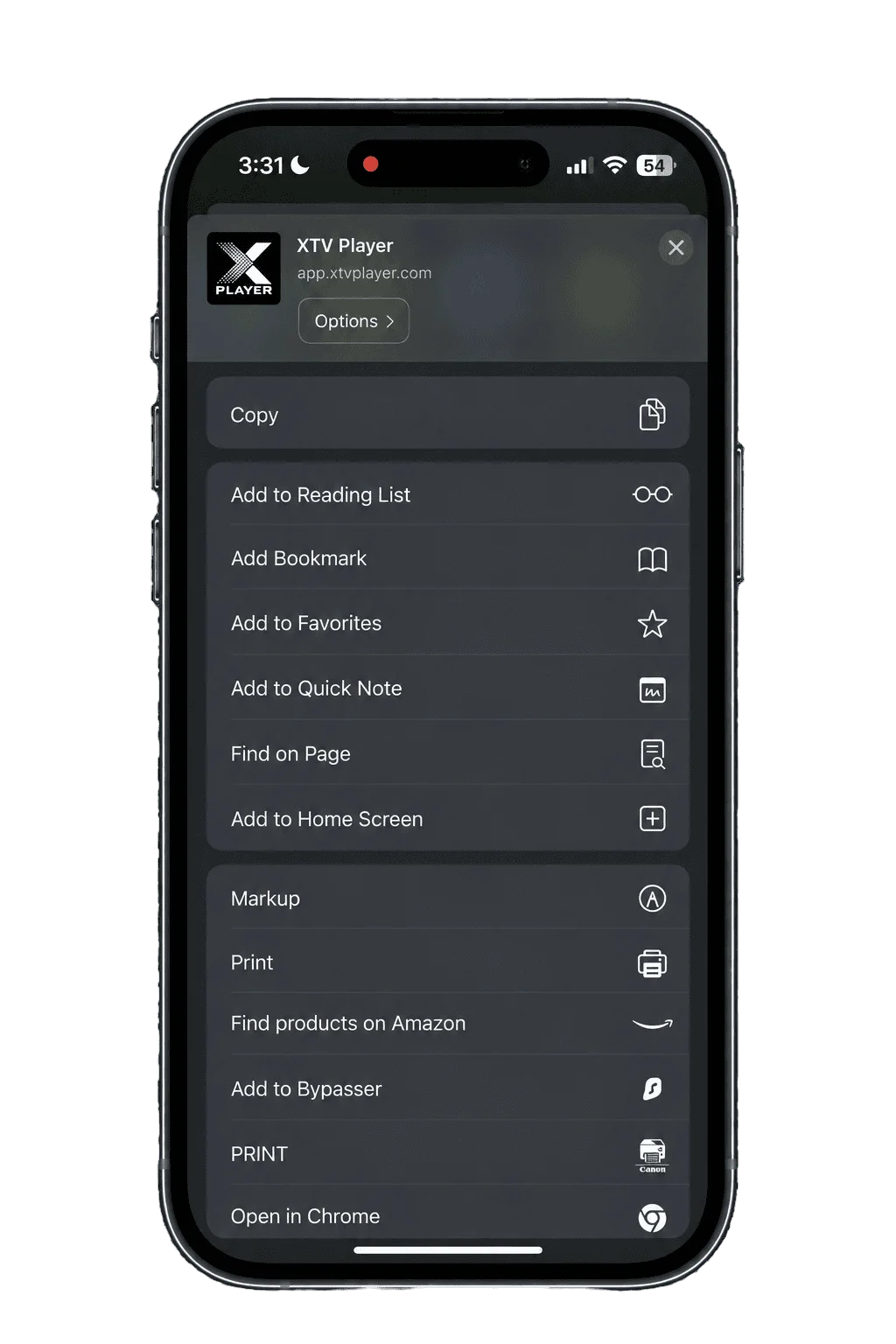
Add World View X player to Your Home Screen
This step turns the website into an app icon on your iPhone. Tap the Share button at the bottom of your Safari screen. It looks like a square with an arrow pointing up. Then, select Add to Home Screen from the menu that appears.
08
Tap "Add" to Finish (and What "Open as Web App" Means)
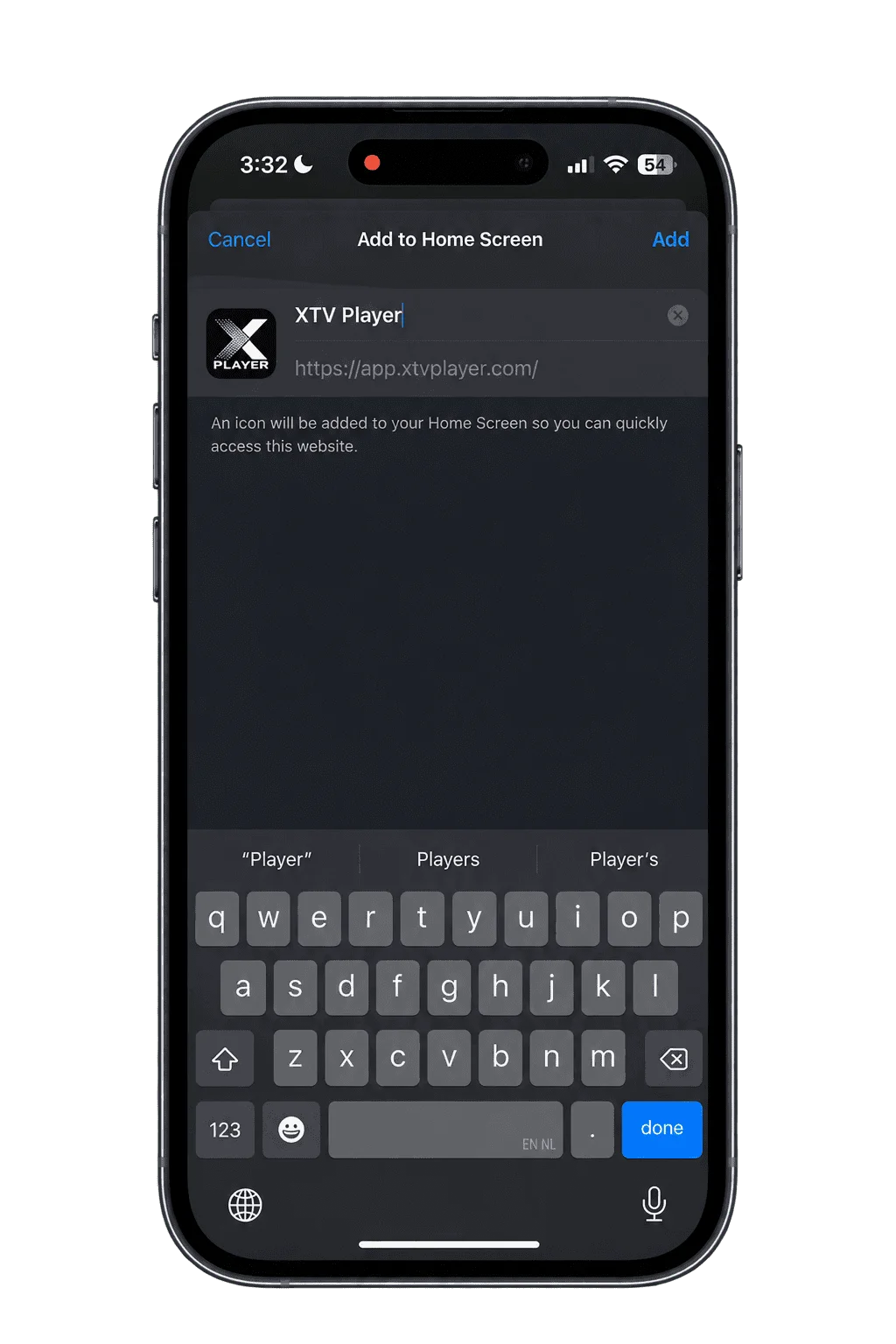
On the final screen, you’ll see a box to name your app icon. Type World View X player, or any name you prefer.
If your iPhone runs iOS 26 or later, you’ll also see an Open as Web App toggle. Keep it switched on. It lets the app open full-screen, just like a native app, instead of inside Safari. If you’re on an older version of iOS, you won’t see this toggle, and the app will open full-screen automatically.
Tap Add to finish. The World View X player app icon now appears on your Home Screen.
You're All Set: World View X player app Is Now on Your iPhone
That’s it. Tap the new icon anytime you want to watch. Your profile, your channels, and your preferences will already be waiting for you.
For example, if you set up a Kids profile in Step 6, it stays saved for next time. You won’t need to repeat the login process unless you sign out or switch devices.
World View X player App Not Working on iPhone? Quick Fixes
If something doesn’t work as expected, try these fixes first. Most issues have a simple cause.
- The app won’t open, and it redirects to Safari instead. Delete the icon from your Home Screen, then repeat Steps 7 and 8. Make sure the Open as Web App toggle stays on.
- The QR code won’t scan. Check that your camera has a clear, well-lit view of the QR code on your TV screen. Adjust the distance and hold steady. If it still fails, repeat Step 1 (Settings > X Player) to reopen the code. If you already have your login details, you can enter them manually.
- Your Service ID doesn’t work. Confirm you’re entering the exact ID from your purchase confirmation. If the problem continues, contact World View HD support for help.
- Channels won’t load after login. Check your Wi-Fi connection first. A weak or unstable connection is the most common cause of loading issues.
FREQUENTLY ASKED
Questions Families Ask

Can I use one Service ID on multiple iPhones?
Your Service ID connects to your World View HD account, so you can generally use it across your own devices. However, check your account terms or contact support for specific limits.
What’s the difference between my Service ID and my login details?
Your Service ID links the app to your World View HD box (Step 4). Your login details are your personal sign-in details (Step 5). You get them in Step 1 by scanning the QR code on your TV (Settings > X Player) and completing the sign-up form. They arrive by SMS or email. You need both to finish setup.
I didn’t get the SMS or email. What now?
First, wait a few minutes and check your Spam or Junk folder. Then make sure you entered your phone number or email correctly in the sign-up form. If nothing arrives, repeat Step 1 (Settings > X Player), scan the QR code again, and re-submit the form. Still nothing? Contact World View HD support and we’ll resend your details.
Is this app safe if it’s not on the App Store?
Yes. The World View X player app is a Progressive Web App (PWA), so it runs through Safari over a secure HTTPS connection instead of the App Store. Adding it to your Home Screen only creates a shortcut icon on your iPhone. It doesn’t install any extra files or give the app access to your personal data. You can delete the icon anytime, like any other app.